
Assessments are the participant tasks that generate your study data: validated questionnaires (often called instruments), symptom scales, and guided tasks such as timed physical tests. In TrialPilot, study sessions are built from scheduled assessments — the schedule you configure on the Assessments tab of the Study Builder becomes, directly, the sequence of tasks each participant sees in the mobile app.
This page covers choosing assessments, configuring their schedules, and — most importantly — understanding how those schedules translate into the participant's day-to-day experience.
Assessment categories#
The assessment library is organized by the role an instrument plays in a protocol. When you browse the library, you can filter by category:
| Category | What it covers |
|---|---|
| Primary PRO | Patient-reported outcomes that measure your primary endpoint — the main question the study answers. |
| Secondary PRO | Patient-reported outcomes supporting secondary endpoints and additional symptom domains. |
| Neurocognitive | Instruments measuring cognitive function, such as attention, memory, and processing speed. |
| Autonomic function | Measures of autonomic nervous system function, including orthostatic symptom instruments. |
| Physical or functional | Guided physical tasks and functional capacity measures completed with the app’s guidance. |
| Exploratory | Instruments included to explore hypotheses beyond the formal endpoints. |
| Safety | Instruments that support safety monitoring during the study. |
| Screening or baseline | Instruments completed before or at the start of participation to establish eligibility or a starting point. |
Add an assessment#
- Open Assessments in the Study Builder.
- Select Add Assessment.
- Filter by category if it helps you find the right instrument.
- Select an assessment.
- Select Add Assessment to confirm.
- Configure its schedule. Continuous assessments — those that collect data passively rather than as discrete tasks — are added without a schedule dialog.
The Assessments tab also carries the study's Statistical Methods section. Use it to document the planned analysis approach alongside the instruments it will analyze, so the schedule and the analysis plan live together.
Schedule types#
Each non-continuous assessment carries a schedule that determines when it opens for participants:
| Schedule | Behavior |
|---|---|
| Baseline | Performed before the study begins, establishing the participant’s starting point. |
| None | Included in the study without a repeating schedule. |
| Daily | Opens as a recurring task every day. |
| Weekly | Opens as a recurring task every week. |
| Custom weeks | Opens only on the study weeks you select — for example week 2, week 4, and week 8. |
| Continuous | Collects throughout the study with no discrete task; added without a schedule dialog. |
Schedule with restraint
How schedules become participant tasks#
The participant-facing experience is built entirely from the Study Builder schedule — there is no separate step where you design the app experience. The mapping works like this:
- Baseline assessments open before the study starts, so the participant completes them before any intervention begins.
- Daily and weekly assessments become recurring participant tasks that appear on the app's home screen when due.
- Custom week assessments open on the selected study weeks and stay out of the way otherwise.
- Intervention logs are driven by the intervention and dosing setup on the Interventions tab, not by the assessment schedule.
- Daily check-ins track participant symptoms and post-exertional malaise (PEM) signals — the short daily pulse that runs alongside your scheduled instruments.
- Wearable baseline settings define the pre-intervention wearable run-in: the window of passive wearable data collected before the intervention starts.
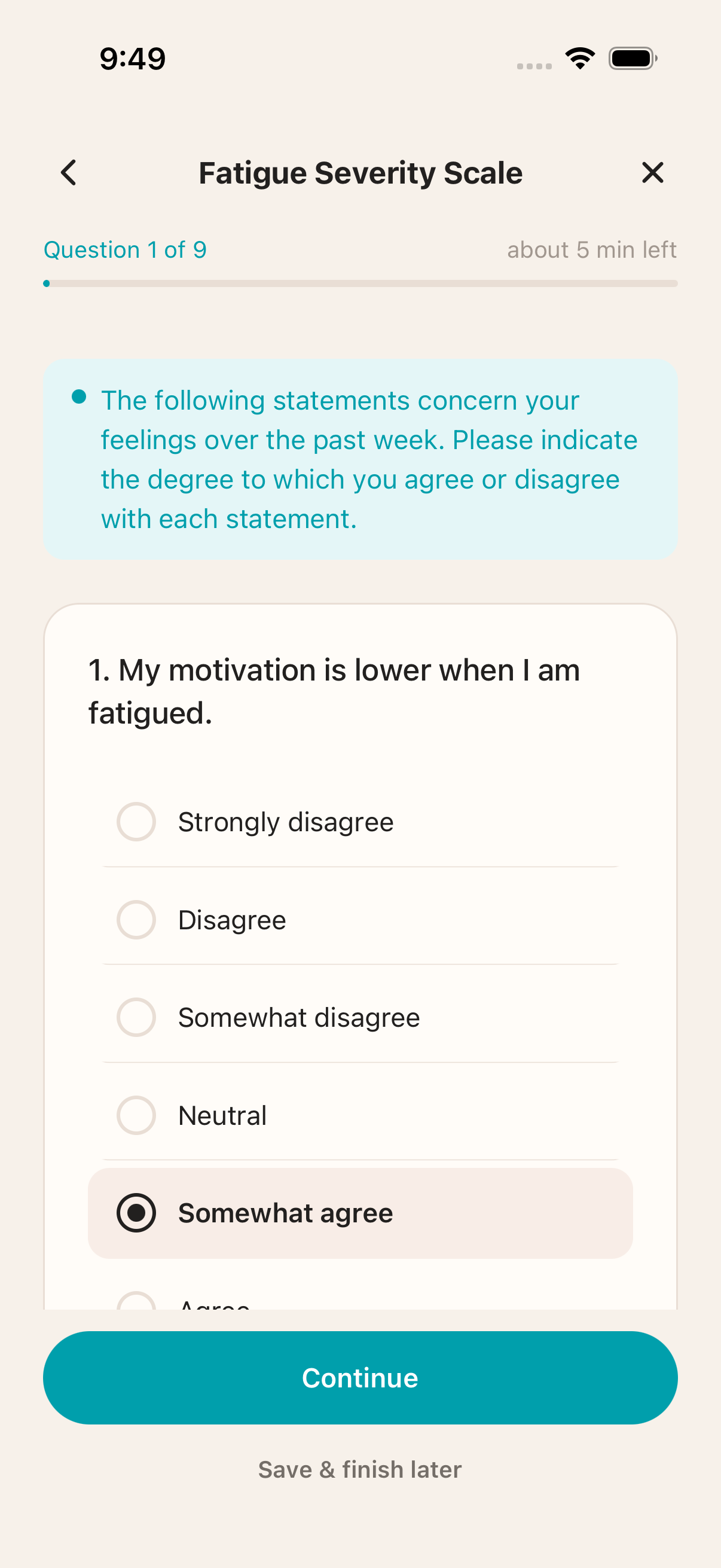
Because the app experience is generated from the schedule, the best way to review it is to live it: enroll yourself in test mode and let the schedule run for a few days. For how the completed tasks appear on your side, see Monitor participants.