
The TrialPilot Researcher Dashboard is the operating workspace for study teams. It brings study setup, participant monitoring, safety review, and data preparation into one de-identified view, so coordinators and investigators can move from protocol design to day-to-day operations without switching tools. The exact options you see depend on your organization role, enabled sign-in methods, and whether the active study is still in draft or has already been published.
| Role | Typical access |
|---|---|
| Organization Admin | Manage organization settings, members, studies, and study operations. |
| Study Admin | Create and configure studies within an organization. |
| Investigator | Review study status, participants, recruitment, safety, and reporting workflows. |
| Coordinator | Monitor participants and day-to-day trial operations. |
| Viewer | Read-only visibility where granted. |
Getting started
Register
- Open the Researcher Dashboard registration page.
- Enter your display name, email address, and password.
- Select Register.
- If email verification is enabled, check your inbox and follow the verification link.
Passwords must be at least 8 characters when registering. If Google sign-in is enabled, you may also use Continue with Google. A Google-created account may not have a password at first; you can add one later from Account Settings.
Log in
- Open the Researcher Dashboard login page.
- Enter your email address and password.
- Select Login.
If email sign-in flows are enabled, you can request a one-time magic link by entering your email address, selecting Email Me a Magic Link, and opening the link from your inbox.
Account security
From Account Settings, you can:
- Update your display name.
- View your account email address.
- Resend email verification when your email is unverified.
- Add or change your password.
- Review linked external sign-in methods.
- Unlink an external sign-in provider when another sign-in method remains available.
- Review active sessions, including the current session.
- Select Log Out Everywhere to revoke active sessions across devices and browsers.
Workspace setup
After login, the dashboard opens your active workspace. If you already have a selected study, you are taken to that study's dashboard. If you do not belong to an organization or study yet, TrialPilot shows setup prompts.
Create an organization
- Select Create Organization.
- Enter the organization name.
- Select Create Organization.
The person who creates an organization is automatically set as its organization administrator. Organization names on the creation form can be up to 30 characters.
Join an existing organization
If your organization already exists, ask an organization administrator to invite you. The invite is sent to the email address associated with your account. The invited email must already have a TrialPilot researcher account.
Organization administration
Organization administration is available to organization admins.
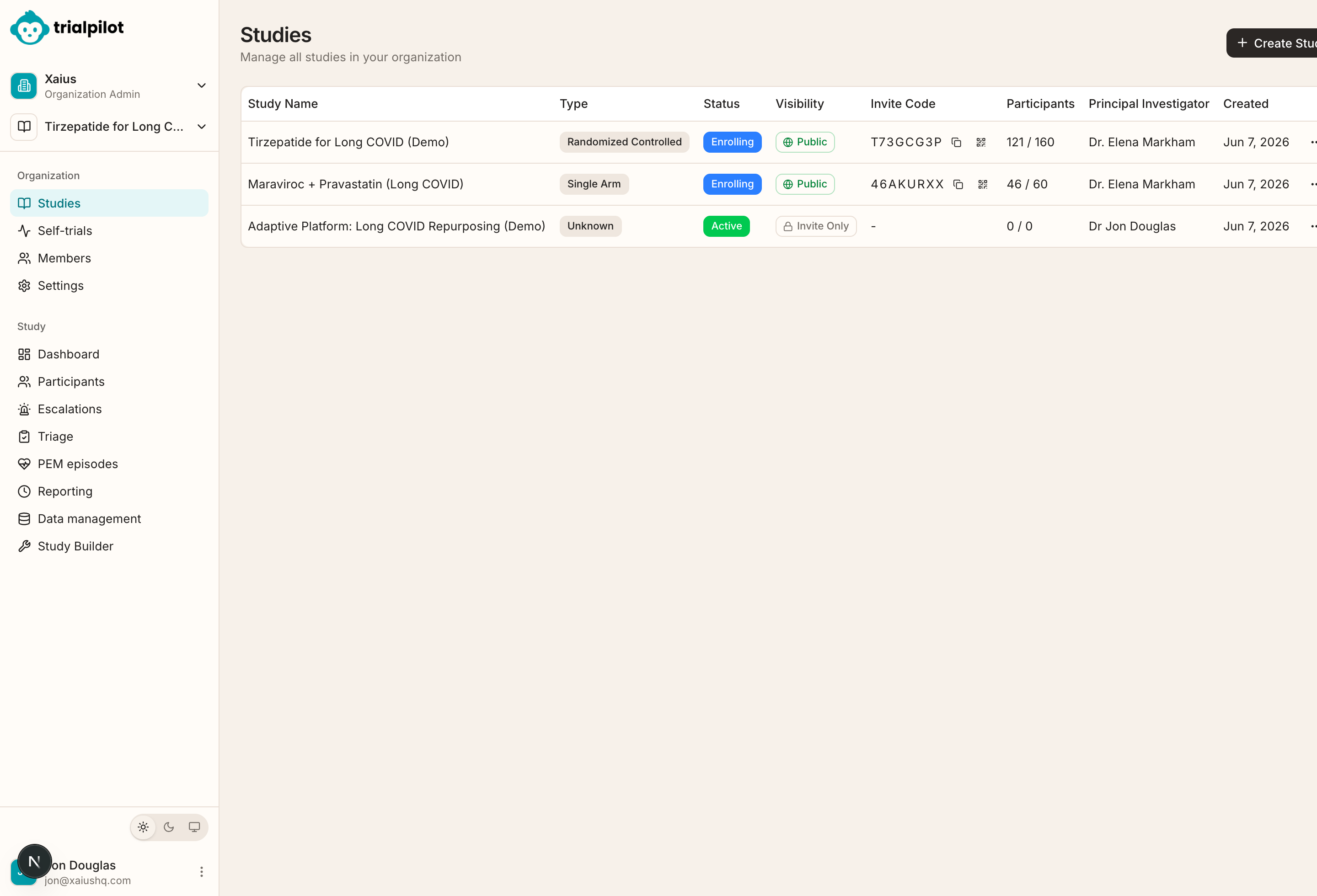
Studies
View all studies in the active organization, including study type, status, visibility, invite code, participant count, principal investigator, and created date.
Members
Invite organization users by email, choose a role, change another member's role, or remove a member from the organization.
Settings
Manage organization logo, name, primary contact, IRB contact information, mailing address, and website.
Logo uploads
Logos appear in participant-facing materials. Uploads accept PNG or JPEG images under 2 MB.
Creating a study
- Make sure the correct organization is active.
- Select Create Study from the no-studies prompt or Organization > Studies.
- Enter the study name.
- Select Create Study.
Study names can be up to 50 characters and are visible to participants. New studies begin in draft status, and TrialPilot opens the Study Builder after creation.
Study Builder
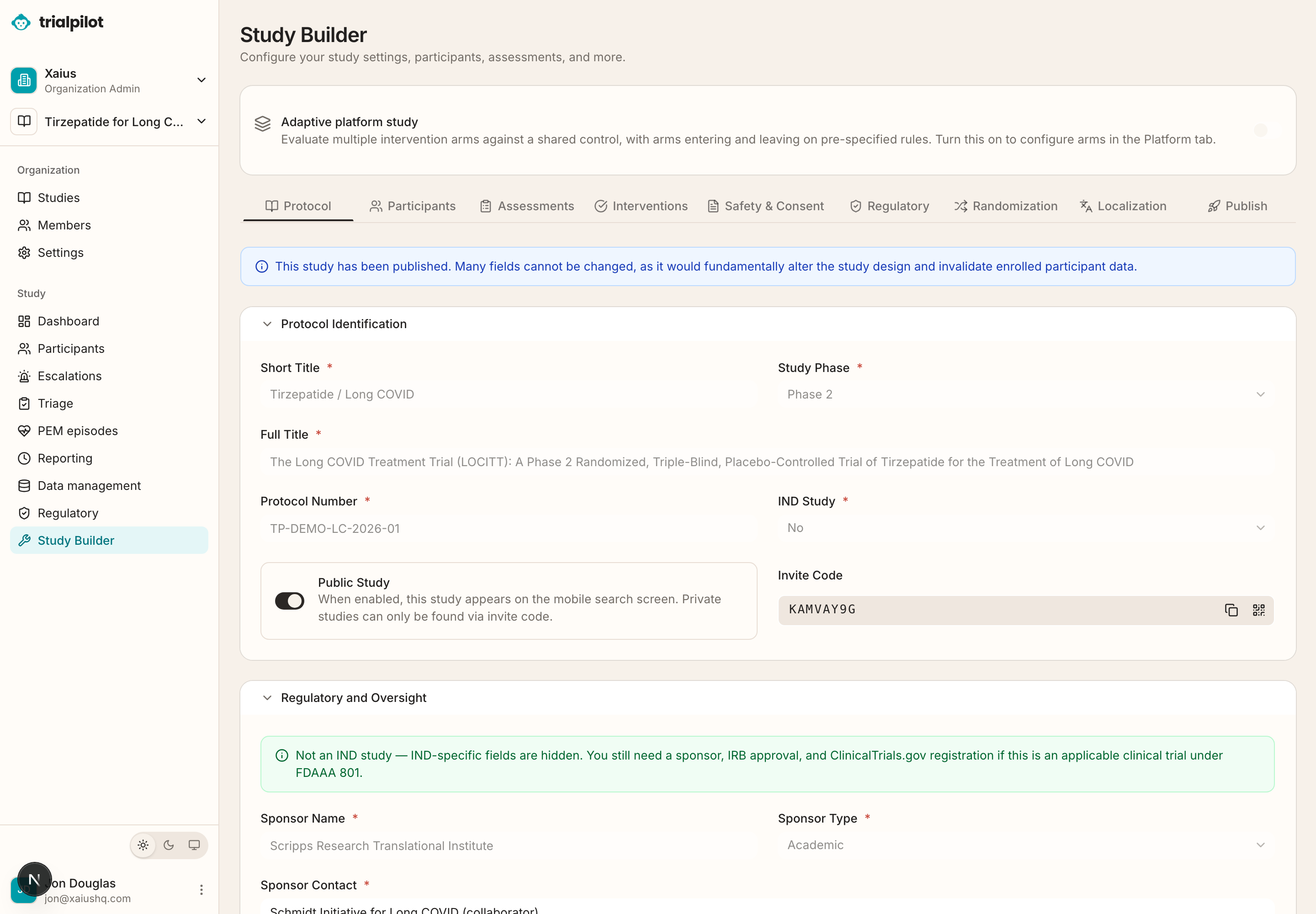
Study Builder configures protocol information, participant criteria, assessments, interventions, consent, regulatory details, localization, randomization, and publishing. When you leave a tab with unsaved changes, TrialPilot asks whether you want to save, discard, or cancel.
Protocol
- Protocol identification: short title, study phase, full title, protocol number, IND study status, and invite code.
- Study design: design type, blinding, control type, randomization ratio, duration, intervention start delay, and wearable baseline duration.
- Study team: principal investigator, clinical project manager, medical monitor, and study coordinator.
- Objectives and endpoints: primary, secondary, exploratory, and safety objectives.
- Regulatory and oversight: sponsor information, responsible party details, NCT number, FDA serial number, and protocol version metadata.
Participants
Define total sample size, per-arm sample size for randomized designs, inclusion criteria, exclusion criteria, and withdrawal or discontinuation criteria. For randomized designs, the dashboard shows ratio and power-calculation context based on the sample size inputs.
Interventions, safety, and consent
Interventions define product name, generic name or class, administration route, formulation, comparator, and dose escalation schedule. Safety & Consent configures eConsent content, IRB or ethics information, adverse-event definitions, SAE definition, and Data Safety Monitoring Board information.
Regulatory profile
Configure the reporting regime, sponsor-investigator IIT setting, IND or IDE numbers, exemption rationale, Investigator's Brochure version, investigator-to-sponsor reporting window, and red-flag rules.
Randomization and adaptive platform studies
Randomized controlled, crossover, and factorial designs expose the Randomization tab. Use it to configure arms or factors, block settings, strata, allocations, locking, participant randomization, audit review, and emergency unblinding with a required reason.
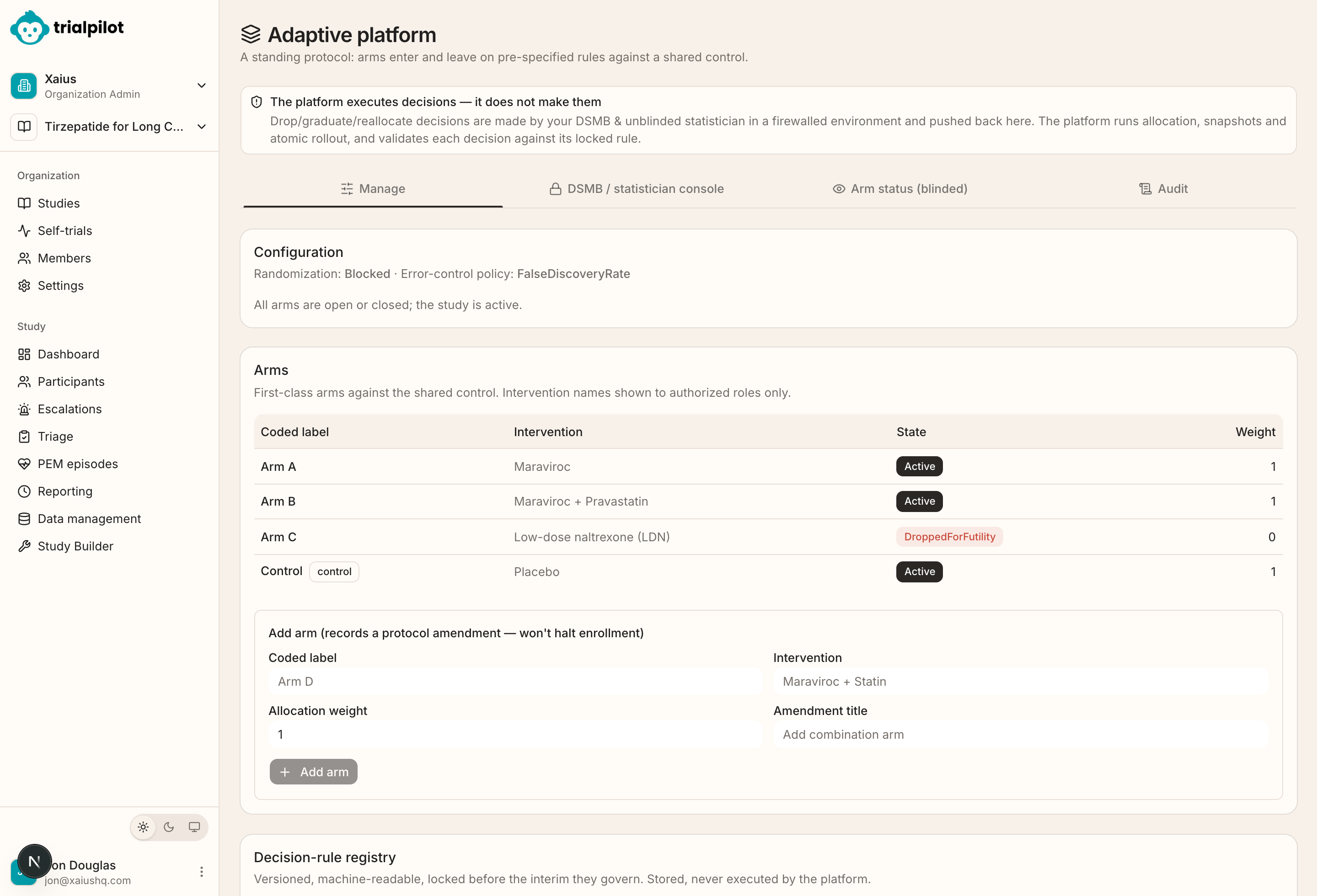
Adaptive platform studies evaluate multiple intervention arms against a shared control. Enabling platform mode reveals the Platform tab for arms, coded labels, allocation weights, control status, error-control policy, response-adaptive guardrails, and combination design settings.
Localization and publishing
Localization manages authoring and target languages, validation coverage, and published localized participant content. The Publish tab reviews whether required fields are complete and sets the study to enrolling when validation passes.
Assessments and study sessions
In TrialPilot, study sessions are built from scheduled assessments, daily check-ins, intervention logs, wearable baselines, and PEM capture. The Assessments tab defines the participant tasks that make up the study schedule.
Add an assessment
- Open Assessments.
- Select Add Assessment.
- Filter by category if needed.
- Select an assessment.
- Select Add Assessment.
- Configure its schedule if it is not continuous.
Assessment schedule types
- Baseline: performed before the study begins.
- None: included without a repeating schedule.
- Daily.
- Weekly.
- Custom weeks, such as week 2, week 4, and week 8.
- Continuous assessments are added without a schedule dialog.
How schedules become participant tasks
- Baseline assessments open before the study starts.
- Daily and weekly assessments become recurring participant tasks.
- Custom week assessments open on the selected study weeks.
- Intervention logs are driven by the intervention and dosing setup.
- Daily check-ins track participant symptoms and PEM signals.
- Wearable baseline settings define the pre-intervention wearable run-in.
Study operations
Study dashboard
The dashboard is the operational home for an active study. It shows study status, visibility, type, principal investigator, enrollment progress, completion rates, withdrawal count, average study day, health signals, attention-needed items, metrics charts, recruitment funnel, wearable cohort status, and recent activity.
Common actions include Share Invite, Export Study, Configuration, and Participants. Participant-level recent activity may be hidden until the study has at least 20 participants.
Participants
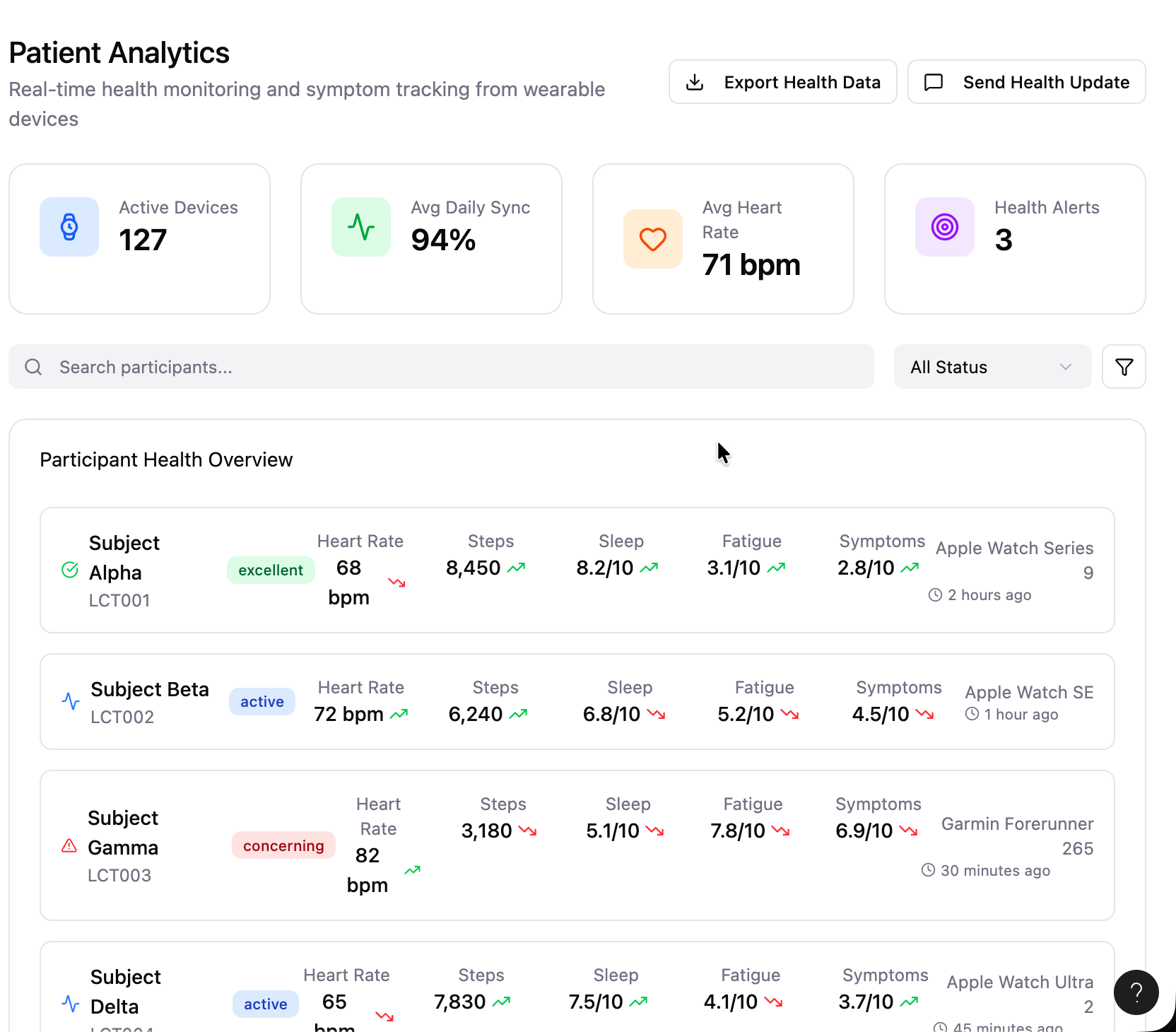
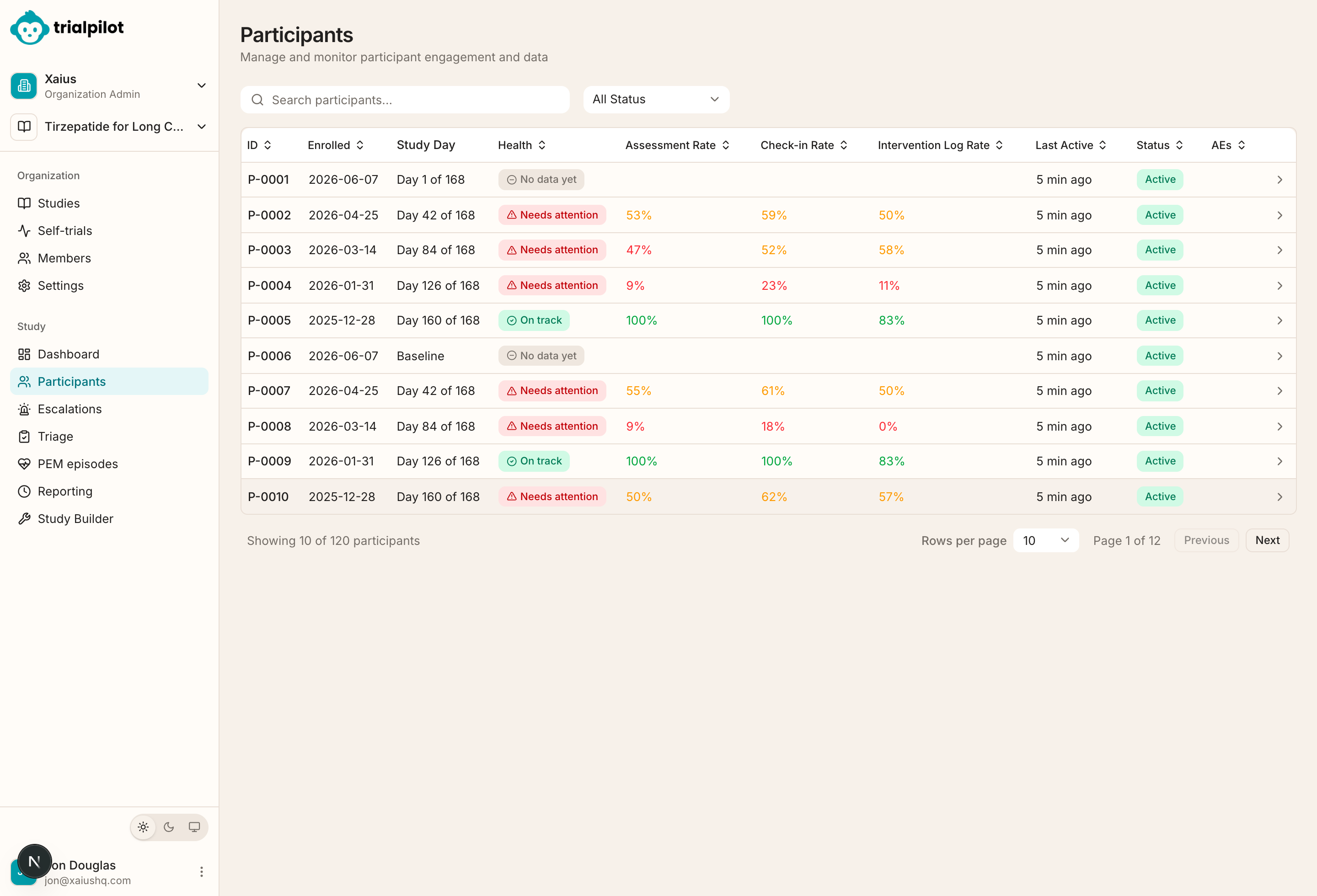
The Participants page monitors de-identified participant progress with study-scoped IDs, enrollment date, current study day, health status, assessment completion, daily check-in rate, intervention log rate, wearable status, last active time, participant status, and adverse event count.
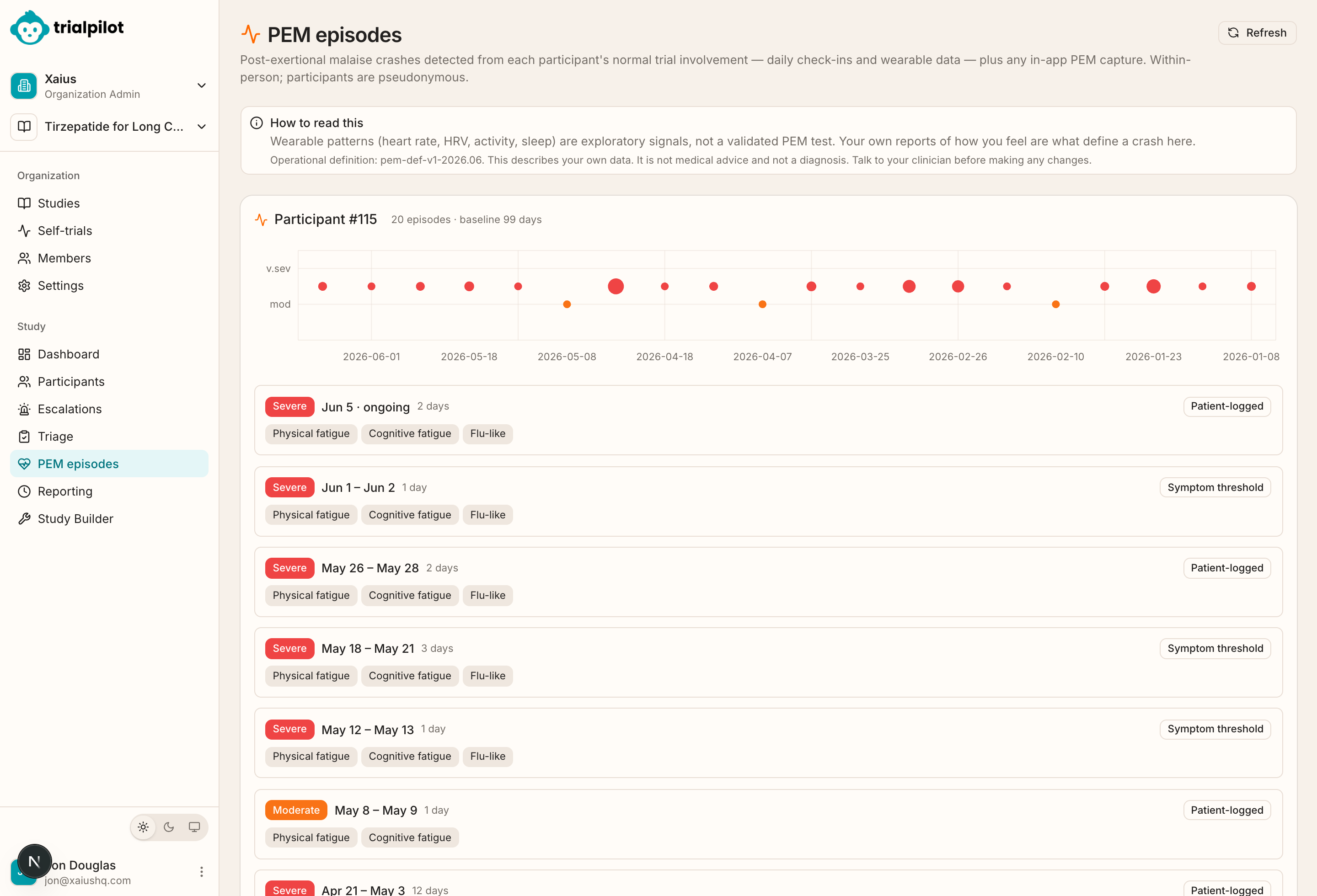
Participant detail pages include Overview, Daily Check-Ins, Assessments, Interventions, Wearable, and PEM episodes tabs. Participant-level researcher views are suppressed for small cohorts until a study has at least 20 participants.
Recruitment
Recruitment queries the TrialPilot research registry for potential participants beyond the current study's direct reach. Researchers see counts only, TrialPilot sends the invitations, and members are not contacted more than once every two weeks.
Safety operations
Escalations
Escalations show red-flag reports routed to emergency care. Participants are already instructed to contact emergency resources at the moment of reporting; the study team's role is follow-up and documentation.
Triage queue
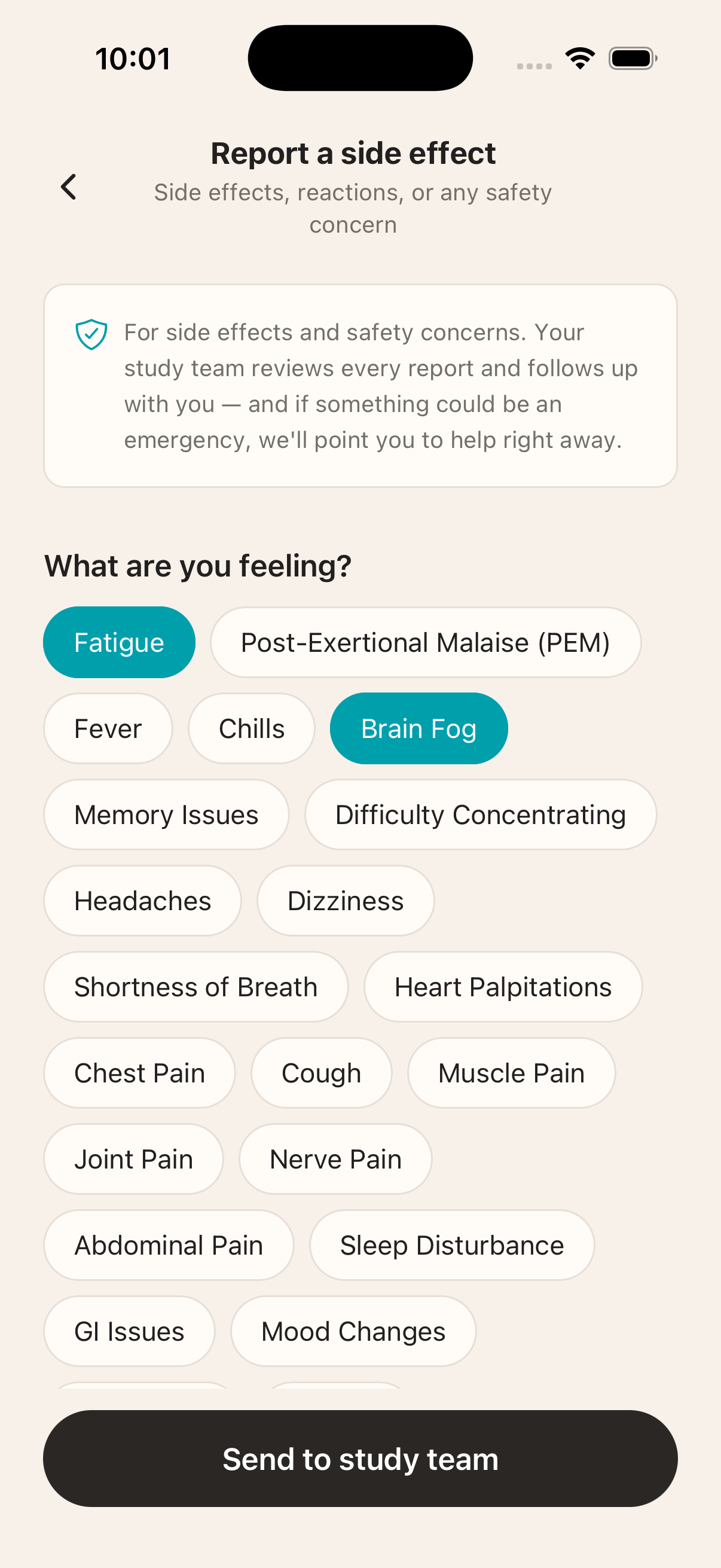
Triage is where reviewers inspect patient symptom reports, review severity and red-flag status, convert reports into recordable adverse events, or dismiss reports with a reason. The system does not classify self-reports as adverse events on its own.
Adverse events and reporting
Adverse events show verbatim term, participant pseudonym, seriousness, CTCAE grade, reportability, and workflow state. Event detail pages support seriousness, causality, expectedness, reportability, reporting obligations, submission completion, resolution, and E2B(R3) ICSR generation.
Reporting shows every reporting clock across the study, links each obligation to its adverse event, highlights overdue clocks, and surfaces sponsor task checklists when available.
Data and regulatory
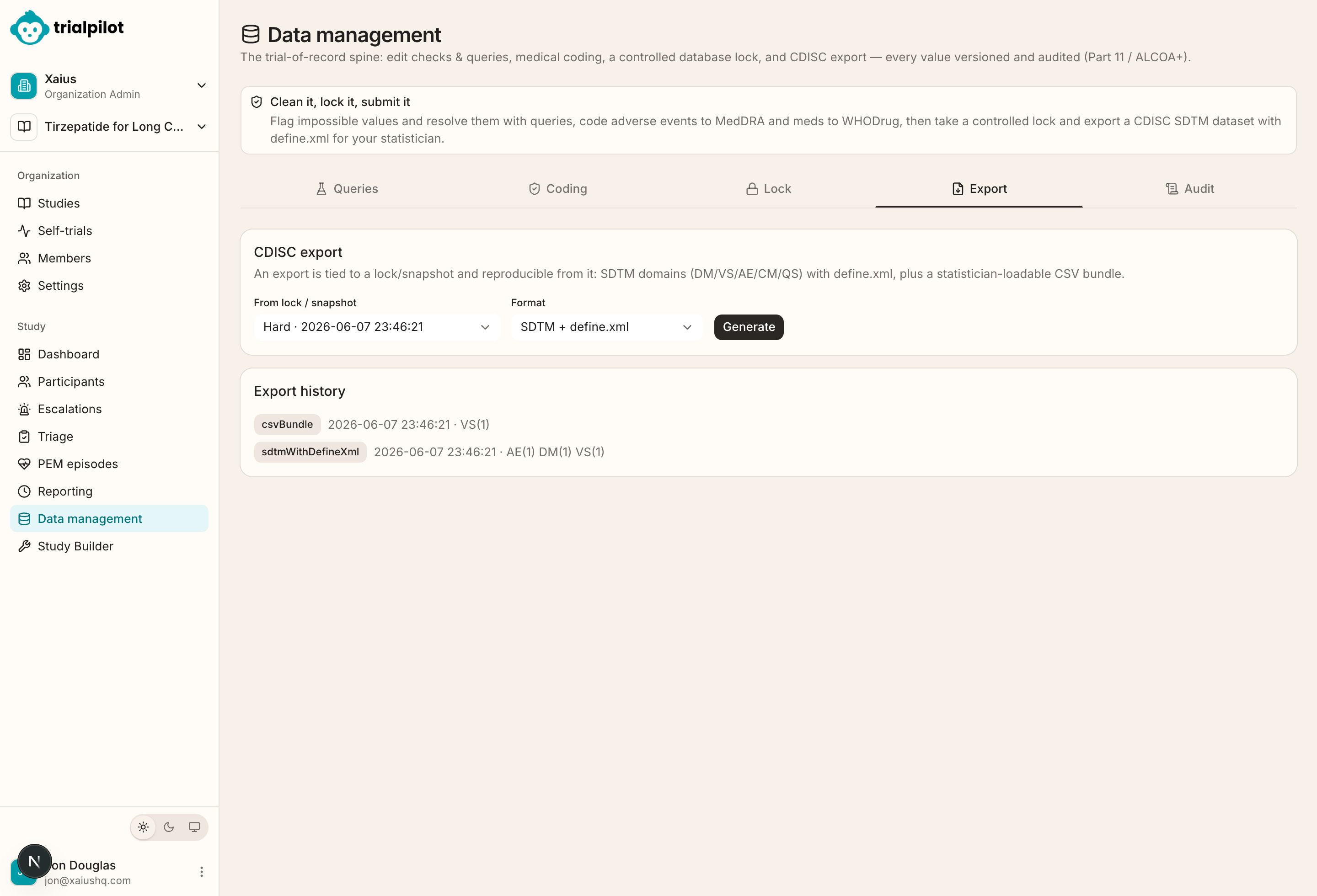
Data management
Data management covers trial-of-record workflows: queries, coding, controlled lock, export, and audit. It is designed around Part 11 / ALCOA+ expectations with versioned and auditable values.
Regulatory workspace
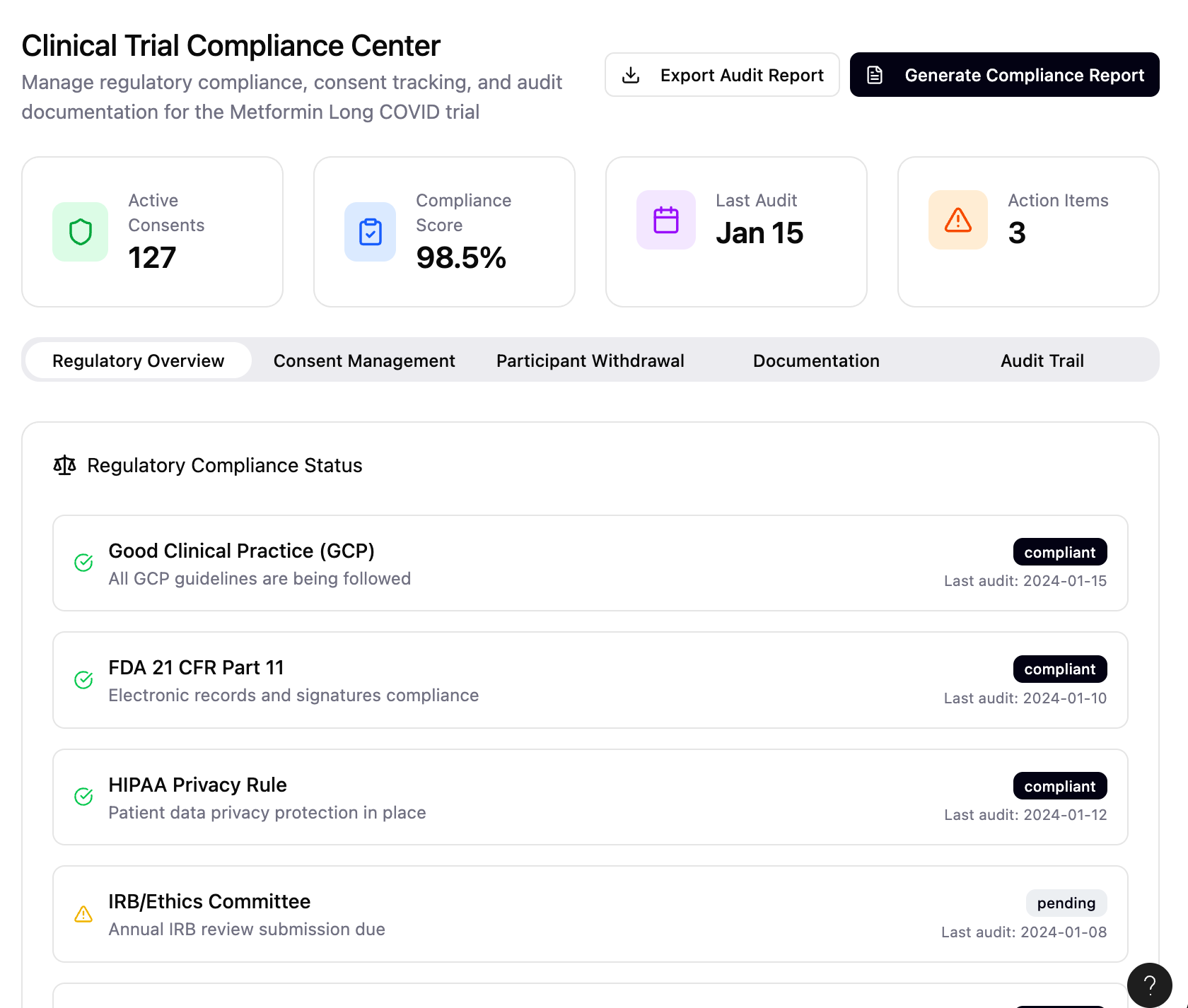
Regulatory manages overview status, submissions, amendments, and reportable events. It is intended to support activation gates so a study cannot enroll without current approval when that rule applies.
Exports and invite codes
Export Study supports data type, format, start date, end date, and wide format when supported. Each study has an invite code that can be copied from Study Builder or shared from the study dashboard. Public studies may appear in participant-facing discovery surfaces; invite-only studies require an invite path.
Recommended first-study checklist
- Register or log in.
- Create or join an organization.
- Complete organization settings, including contact and IRB details.
- Invite study-team members and assign roles.
- Create a study.
- Complete the Protocol tab.
- Complete participant criteria and sample size.
- Add assessments and configure their schedules.
- Configure interventions and dosing.
- Complete Safety & Consent.
- Complete the regulatory profile.
- Configure randomization or adaptive platform settings when applicable.
- Configure localization when needed.
- Review the study for publishing.
- Publish the study.
- Share the invite code or run recruitment feasibility.
- Monitor enrollment, completion, wearable coverage, and safety queues.
- Use reporting, regulatory, and data-management workspaces throughout the study.